

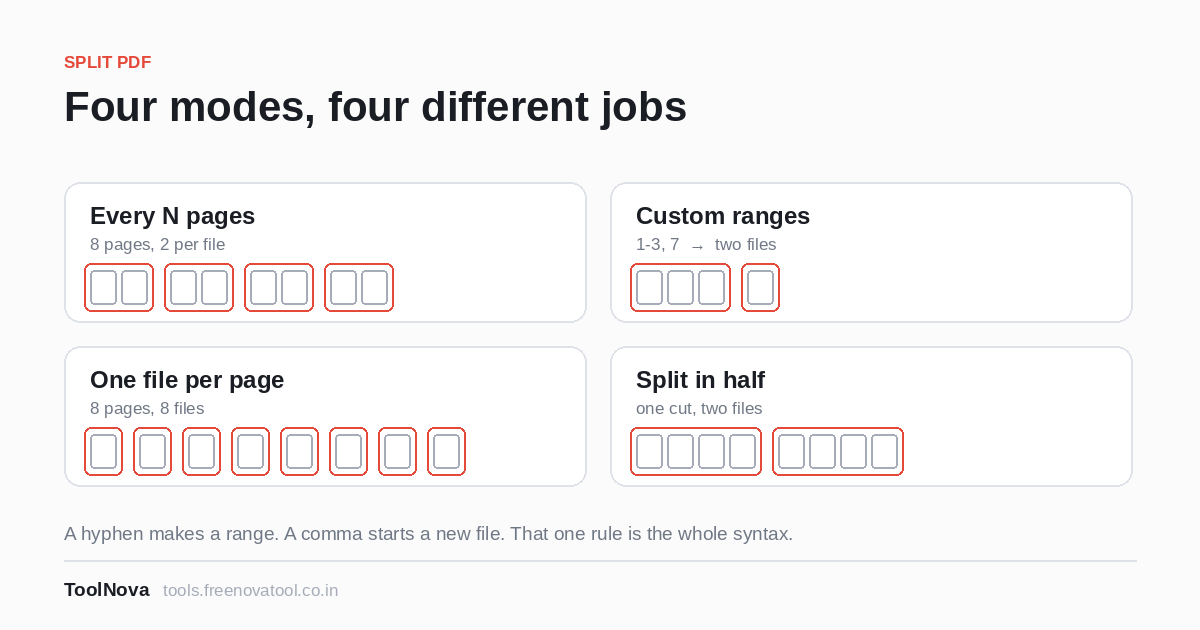
"Split this PDF" can mean four genuinely different things, which is why tools that offer a single Split button are so often useless for the document in front of you. Split PDF asks which of the four you mean. Here is how to answer quickly.
Every N pages
You give a number, and the document is cut into consecutive chunks of that many pages. A 96-page file with 4 pages per file gives you 24 files of 4 pages each.
This is the mode for documents with a fixed, repeating structure, and it is the one that saves the most time when it fits:
- Payslips, invoices or statements generated as one long batch, two pages each.
- Certificates or tickets printed one per page — though for that, "one file per page" below is the direct answer.
- A double-sided scan where every record is a front and a back.
Check your assumption before you run it on 300 pages: if even one record in the batch is three pages instead of two, every file after it is wrong, and the error is silent. Scroll the document once and confirm the pattern really does hold the whole way down.
Custom ranges
The most powerful mode and the only one with syntax, which is why it is worth sixty seconds of explanation. You type something like:
1-3, 7, 10-12
and get three files: pages 1 to 3, page 7 on its own, and pages 10 to 12. The two rules are all there is to it:
- A hyphen makes a range.
10-12is three pages in one file. - A comma starts a new file.
1,2,3is three separate one-page files;1-3is one file of three pages.
That distinction between a comma and a hyphen is the whole thing, and it is where every mistake with this mode comes from. If you want chapters, use hyphens. If you want loose pages, use commas.
Ranges are what you want whenever the document has meaningful boundaries that are not evenly spaced — the usual case for anything written rather than generated. Chapters of a book, sections of a contract, the three appendices a client asked for separately. Pages you do not list simply do not appear in any output file, which is useful in itself: it is how you drop blank separator pages while splitting.
One habit worth having: write the ranges down from the document's own contents page before you start typing, and count the front matter. A book whose chapter one begins on printed page 1 may well begin on PDF page 9, and a range list that is eight pages out produces files that all look plausible and are all wrong.
One file per page
Exactly what it says: a 40-page PDF becomes 40 single-page PDFs. No parameters, nothing to get wrong.
This is the mode for when the page is the unit — a set of certificates to email individually, scanned forms to file one per person, photographs collected into a PDF that you now want apart again. It is also the quickest route to a specific single page when you cannot be bothered to count: split everything, take the page you wanted, delete the rest.
Watch the file count. Running this on a 400-page document gives you 400 files, and a download folder in that state is its own problem. Above fifty or so pages, ranges are almost always the better tool.
Split in half
One cut in the middle: two files. On an odd page count the first file takes the extra page.
It sounds too simple to deserve its own mode, and then you need it twice in a week. Two obvious uses: a scan where two documents went through the feeder in one pass, and a file that is just over an upload limit and would go through as two halves. It is also the one-keystroke answer to "I only need the second half of this", which is a request that arrives more often than you would think.
Splitting, or extracting?
There is a question worth asking before any of this: do you actually want the document divided, or do you just want some pages out of it?
- You want several files, and the original to be gone as a unit — that is splitting. Use this tool.
- You want one file containing a few chosen pages — that is Extract Pages, which is a shorter path to the same place.
- You want the original minus a few pages — that is Remove Pages. Splitting and reassembling to achieve this is a long way round.
Using the wrong one of those three is the most common reason a simple job turns into twenty minutes of merging things back together.
What you get back, and what stays behind
The split runs in your browser and your original file is never modified. Output files are named after the source with a numbered suffix, and when there are several of them they arrive as a zip.
Two things do not survive a split, for reasons that are structural rather than careless. Bookmarks pointing into the document no longer have anything to point at once it is in pieces, and page numbers printed on the pages are part of the page image — a file containing pages 10 to 12 still says 10, 11, 12 on it. If the pieces are going out separately and need their own numbering, run Add Page Numbers over each one afterwards.
And if the reason you are splitting is that the whole document is too big to send, splitting is the better answer to that problem than compressing is. Two files of 6 MB keep every word searchable; one 2 MB file produced by heavy compression has turned all of it into pictures.