

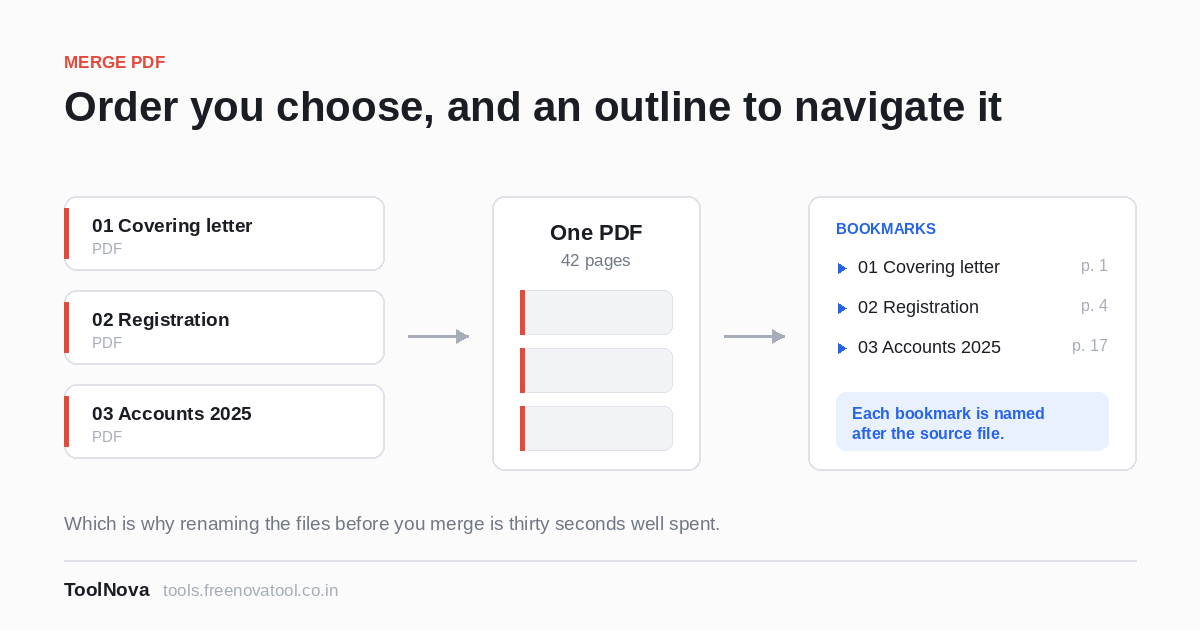
Merging is the most-used PDF operation there is and the one people think least about, because it looks like there is nothing to think about: pick files, press button, get one file. The merge itself is indeed trivial. What is not trivial is whether the document you have just created can be used.
A tender submission, a loan application, a case file, a year of invoices — these end up as one PDF of a hundred pages or more, and someone has to find things in it. That is the part worth getting right.
Order is not alphabetical
The first thing to know about Merge PDF is that it does not sort your files. It uses the order you put them in, which you set by dragging the tiles in the list before you run it. You need at least two files; beyond that there is no practical limit.
This is a deliberate choice, and it saves you from the classic accident. Filenames sort alphabetically, and alphabetical order is almost never document order:
page1.pdf,page10.pdf,page11.pdf,page2.pdf— the usual, maddening result of naming pages without leading zeros.Appendix Alanding before theIntroduction.scan_0001throughscan_0048in perfect numerical order, except the one page someone re-scanned and saved asscan_12_fixed.
Drag the tiles into the order a reader needs, not the order your file manager happens to show. Then check the two ends: the first tile and the last tile are the two positions people get wrong, and they are the two a reader notices immediately.
The bookmark checkbox is the whole point
There is one option: Add a bookmark for each source file, on by default. Leave it on. In a long merge it is the difference between a usable document and a wall of paper.
With it on, every file you merged becomes an entry in the PDF's outline — the sidebar panel that Acrobat calls Bookmarks, Preview calls Table of Contents, and Chrome shows under the document-outline icon. Click an entry and you jump to the page where that file starts. A 180-page bundle becomes a list of twelve things you can navigate.
Each bookmark is named after the source file. That is the detail that turns this from a nice feature into a reason to do something before you merge: rename your files first. Thirty seconds of renaming buys you an outline that reads
- 01 Covering letter
- 02 Company registration
- 03 Audited accounts 2025
- 04 Technical proposal
instead of one that reads doc1, scan0003,
Untitled (2), WhatsApp Image 2026-03-11 at 14.22.09.
The second outline is technically present and practically worthless. The
numbered prefixes are worth adding too: they keep the files in order in your
folder while you are assembling them, and they survive into the outline as a
sensible numbering.
What a merge does not change
Worth knowing, because people expect otherwise:
- Page sizes stay as they are. Merge an A4 report with a landscape A3 drawing and you get a document containing both. Nothing is scaled or rotated to match. If you want uniformity, fix the pages before merging — Rotate PDF and Crop PDF are the tools for that.
- Form fields and existing bookmarks inside your source files are not guaranteed to survive, and interactive forms in particular do not merge cleanly. If the submission needs a working form, keep it as its own file.
- Nothing is renumbered. If each source file had its own "Page 1 of 4" printed on it, the merged document now contains four different page-one labels. That is the next job.
Numbering, after the merge
The last point catches people out at exactly the wrong moment, usually when a reviewer asks them to "look at page 47" and there are three. Once the merge is final, run Add Page Numbers over the result. One continuous sequence across the whole bundle, which is what anyone referring to a page in a meeting needs, and it takes a few seconds.
Order of operations that works: rename, merge with bookmarks, number, then compress if the result is too large to send. Numbering before merging gives you the problem you were trying to avoid, and compressing before merging wastes the effort because the merge re-writes the file anyway.
If the result is enormous
Merging does not add weight of its own, but it adds up what was already there, and a bundle of forty scans is a big file by the time it is one document. Before you reach for Compress PDF, ask whether the reader needs all of it in one piece. A tender that wants a technical proposal and a financial proposal as separate documents is better served by two merges than by one merge and an apology.
When you do compress, remember what it costs: anything beyond the Light level turns the text of your carefully assembled bundle into pictures, and the bookmarks you just created will still work but nothing in the document will be searchable. For a submission someone will search, that is a poor trade.
Checking your own work
Three things, in the thirty seconds after the merge finishes, will catch almost every mistake anyone makes with this:
- Open the bookmarks panel. Are all your files there, in the order you intended? This catches a mis-drag instantly.
- Check the page count. It should equal the sum of the parts. If it is short, a file did not load; if it is long, something is in there twice.
- Look at the last page. Merges fail quietly at the end more often than at the beginning, and nobody proof-reads backwards.