

You convert a clean, tidy PDF to Word and get back something that looks like it was assembled by someone in a hurry: paragraphs broken into separate lines, a table that is now a column of loose text, headings that are not headings. Then you convert a different PDF and it comes out nearly perfect.
The difference is not the converter's mood. It is what each PDF contains, and once you know what that is, the odd results stop being mysterious and start being predictable.
What a PDF actually stores
A Word document stores meaning: this is a Heading 2, this is a paragraph, this is a table with four columns, this list is numbered. The layout is calculated from that meaning when you open it, which is why text reflows when you change the margins.
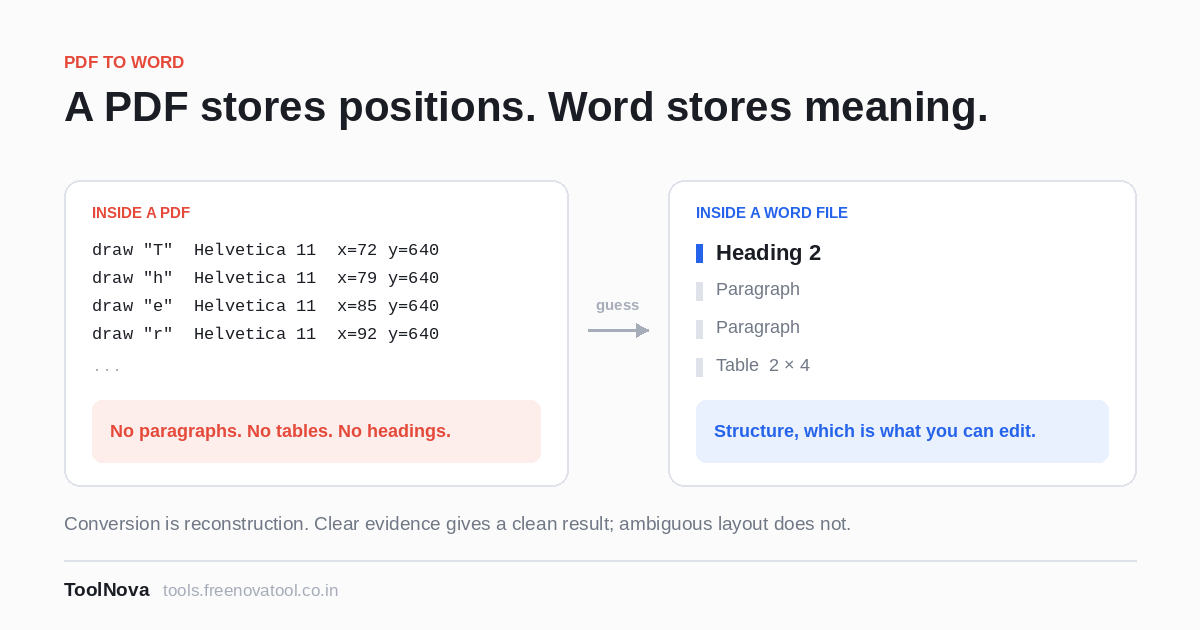
A PDF stores appearance. Reduced to its essentials, a page is a list of instructions along these lines:
draw "T" in Helvetica 11pt at x=72 y=640
draw "h" in Helvetica 11pt at x=79 y=640
draw "e" in Helvetica 11pt at x=85 y=640
...
There is no paragraph in that list. There is no table. There is no heading. There is a set of letters at coordinates, in a particular font at a particular size. The reason a PDF looks identical on every device is precisely that it has thrown away everything flexible and kept only the final positions.
So converting a PDF to Word is not a translation. It is a reconstruction: the converter has to look at where the letters landed and work backwards to the meaning that must have produced that arrangement. Sometimes the evidence is clear. Sometimes it genuinely is not.
The three guesses, and how to help each one
PDF to Word exposes its guesses as options instead of hiding them, which means you can tell it what it is looking at.
Headings, from font size
With Detect headings from font sizes on, the converter measures the sizes used across the document, decides what counts as body text, and promotes anything meaningfully larger to a Word heading style. You get a navigable document with a working outline pane.
This works well on reports and books, where headings really are larger. It works badly on two kinds of file: documents where headings are the same size as body text and distinguished only by bold or colour, and documents with a lot of mixed sizes for decorative reasons — brochures, newsletters, anything designed rather than written. On those, turn it off and apply styles yourself. It is five minutes of work and the result is correct instead of nearly correct.
Tables, from alignment
Rebuild tables where columns line up looks for text that shares vertical alignment down the page and rebuilds it as a real Word table. This is the hardest of the three guesses, because in a PDF a table and some text that happens to be neatly aligned look exactly the same.
It does well with ruled tables and consistent columns. It struggles with merged cells, with cells whose contents wrap onto three lines, and with financial layouts where numbers are right-aligned and labels are left-aligned with a gulf between. If the table is the point of the document — a price list, a schedule, a set of results — consider PDF to Excel instead. A spreadsheet is a better destination for a grid than a text document is, and the column detection has cleaner rules to work with.
Page breaks
Insert a page break between PDF pages is off by default, and that default is deliberate. In a PDF, a page break is a physical fact; in Word it is a formatting instruction that will fight you the moment you edit anything. Leave it off when you intend to edit the text — a paragraph split across two PDF pages will be rejoined, which is what you want. Turn it on only when the page boundaries carry meaning: one certificate per page, one form per page, slides.
The page range field earns its keep
There is a Pages box that takes something like
1-10. It is easy to ignore, and it is the most useful field on the
screen for two reasons.
First, you usually do not want the whole document. You want the three pages with the clause you have to amend. Converting three pages gives a cleaner result than converting ninety and deleting eighty-seven, because every page the converter reads is another chance for it to guess wrong somewhere.
Second, it is how you test. Convert page one, look at what came back, adjust the two checkboxes, convert page one again. Thirty seconds, and then you run the settings you have proved on the whole file.
The case where nothing works
If the conversion gives you an almost empty document — a few stray characters, or nothing at all — the PDF very probably contains no text. It is a scan, or a photograph, or it was flattened into images at some point by a compression pass. Every letter on the page is a picture of a letter.
No converter can extract text that is not there. What you need first is OCR, which looks at the image of each page, recognises the shapes as characters, and writes a real text layer into the file. Run that, then convert the result. We went through the whole process in making a scanned PDF searchable.
There is a quick way to tell which situation you are in, before you convert anything: open the PDF and try to select a sentence with your mouse. If the text highlights, it is real and conversion will work. If you get a rectangle over the whole page instead, it is an image and you need OCR.
What a good result looks like
Set your expectations where they belong. A faithful conversion gives you back the text, in order, with its structure recognised — paragraphs as paragraphs, headings as headings, lists as lists, tables as tables. It does not reproduce the original's typesetting. Exact line breaks, kerning, hyphenation and the position of a floating image were decisions the PDF's designer made, and Word will make its own.
If you need the appearance preserved exactly, you do not want a Word file at all; you want the PDF. Conversion is for when you need to change the words, and what you want back is editable text rather than a photograph of a document.