
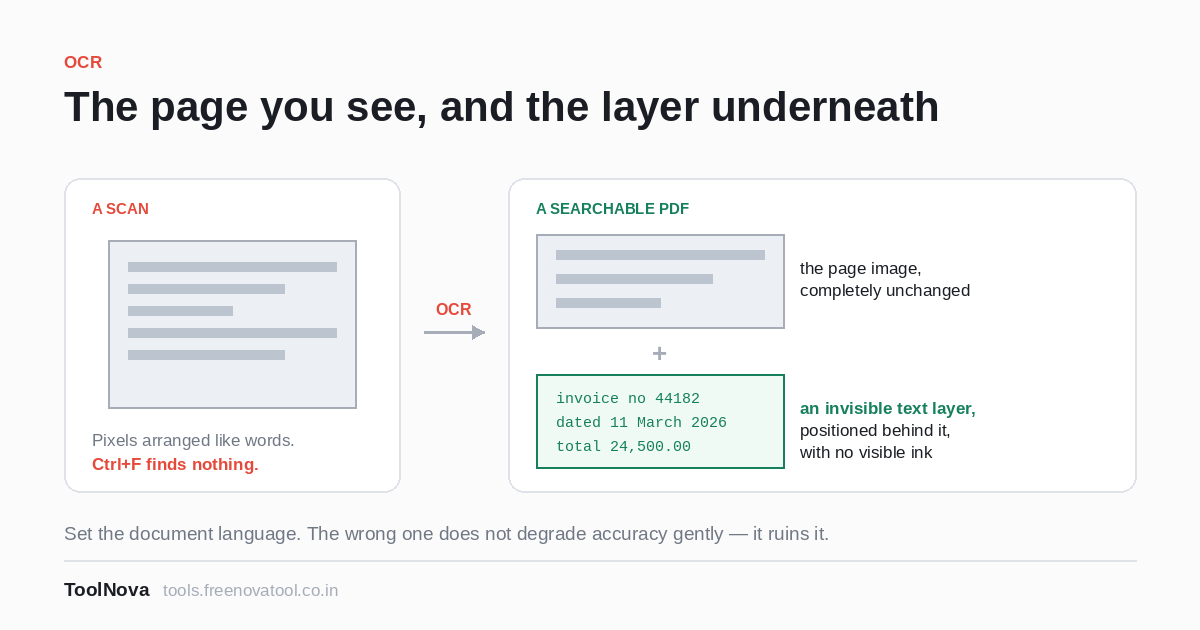
You have a scanned document. You can read every word of it. Ctrl+F finds nothing, you cannot copy a sentence out of it, and converting it to Word gives you an empty file.
Nothing is broken. The scan is a photograph of a page. To you it is obviously text; to the computer it is an arrangement of light and dark pixels with no more meaning than a photograph of a tree. Optical character recognition is the step that looks at those pixels and works out which letters they represent.
What you get back
OCR PDF offers two outputs, both ticked by default, and they are for different purposes.
A searchable PDF keeps your scan exactly as it looks and adds an invisible text layer behind it. The recognised words are positioned over the places they appear in the image, with no visible ink. The document looks completely unchanged — same page, same handwriting in the margin, same coffee stain — and now Ctrl+F works, text can be selected and copied, a screen reader can read it, and a document management system can index it. This is what you want in almost every case.
A plain text file gives you the recognised words with none of the layout. Useful when the words are the point and the page is not: pasting a quote, counting something, feeding the text to another program.
Taking both costs nothing and the text file is tiny, so there is rarely a reason to untick either.
Set the language. It is not a formality.
Recognition is not pure shape-matching. The engine uses what it knows about
the language to resolve genuinely ambiguous marks — whether that character is a
1, an l or an I is often undecidable from
the pixels alone, and the surrounding word decides it.
Choose the wrong language and you lose that help entirely. Accuracy does not degrade gently; it falls off a cliff, and the output is a plausible-looking mess. For a document in Hindi, select Hindi. For a document in Hindi that has been scanned with the language left on English, no quality setting will save it.
If the page is genuinely bilingual, run it twice with different languages and keep the better result for each part. It is cruder than it sounds and it works.
The quality setting, and what it buys
Three choices, and they control the resolution at which each page is examined before recognition:
- Standard, 150 DPI — fastest. Fine for clean, large, modern print: a laser-printed letter, a typed page scanned well.
- Good, 200 DPI — the default, and the right starting point for most real documents.
- Best, 300 DPI — slowest, and noticeably better on small type, dense text, faded print, old documents and anything photographed rather than scanned.
Higher is not free: it is slower, and on a long document the difference is minutes rather than seconds. The sensible approach is to take one bad page out of the document with Extract Pages, try it at Good, and only move to Best if the result is not usable. Testing on your worst page tells you what you need to know about the whole file.
What decides the result, mostly
It is the scan, not the setting. In rough order of impact:
- Straightness. A page skewed by a few degrees is materially harder to read than a straight one, because the engine looks for horizontal lines of text. Straightening a crooked scan is the single biggest improvement available.
- Contrast. Crisp black on white is ideal. Grey text, a grey background, a photograph taken in a dim room — all cost accuracy.
- Resolution of the original scan. If the page was scanned at 100 DPI, asking OCR to examine it at 300 does not invent detail that was never captured. Rescan if you can.
- The typeface. Ordinary print does well. Decorative fonts, dot-matrix output, handwriting and heavily stylised headings do not. Handwriting is not what this is for and will not work.
- Previous compression. A scan that has been through heavy compression has lost exactly the edge detail recognition depends on. Always OCR before compressing, never after — the order matters more than any individual setting.
Expectations worth having
On a good scan of clean print, accuracy in the high nineties per cent is normal. That still means a handful of wrong characters on a dense page, so:
- For searching, it is plenty. A few errors do not stop you finding a document by a phrase in it.
- For quoting or republishing, proofread. Recognition
errors are not random typos; they are confident substitutions —
0forO,rnform,5forS. They read naturally and slip past a quick glance. - Numbers deserve a second look. There is no linguistic context to correct a digit, so a table of figures is the least reliable thing on the page and the most expensive to get wrong.
- Columns, tables and footnotes may come out in a surprising order. The text is there; the reading order may not be the one your eye uses.
Where it fits in a workflow
Order of operations, which matters more than any single choice:
- Scan or photograph as straight and as clean as you can manage. Everything downstream depends on this.
- Build the PDF if you started from images — JPG to PDF.
- OCR, with the right language.
- Then convert to Word if you need editable text, or compress if the file is too large to send.
One practical note specific to this tool: recognition runs on your own machine, but the language data has to come from somewhere, so the first time you use a given language it downloads a data file and caches it. That makes OCR the one tool here that needs a connection while it runs. Your document still never leaves your computer — what travels is the language model, in the other direction. There is more on how to verify that sort of claim yourself in are online PDF tools safe.