
Almost everyone meets PDF compression the same way: a form refuses the file, or an email bounces with a size limit, and suddenly a 14 MB document has to become a 2 MB one. The useful thing to know before you start is that there is only one real trade-off involved, and every compression setting anywhere is a position on it.
The trade-off is this: either the text in your PDF stays real text, or it becomes part of a picture. That single fact decides which level you should pick, and it is worth two minutes of your time.
Why a PDF can be made smaller at all
A PDF is a container. Inside it are page descriptions, embedded fonts, images, and a certain amount of structural bookkeeping — cross-reference tables, object streams, metadata, sometimes the leftovers of previous saves. Compression can attack two completely different kinds of weight:
- Waste — bookkeeping that can be rewritten more efficiently, objects nothing points at any more, the same image stored twice. Removing this costs you nothing at all.
- Detail — the actual resolution of the images and scanned pages. Removing this costs you something real, and you cannot get it back.
Tools that offer one "Compress" button quietly decide for you which of those two they will take. Compress PDF asks instead, because the right answer genuinely depends on what the file is for.
The three levels, measured
| Level | What it does | Text afterwards | Typical saving |
|---|---|---|---|
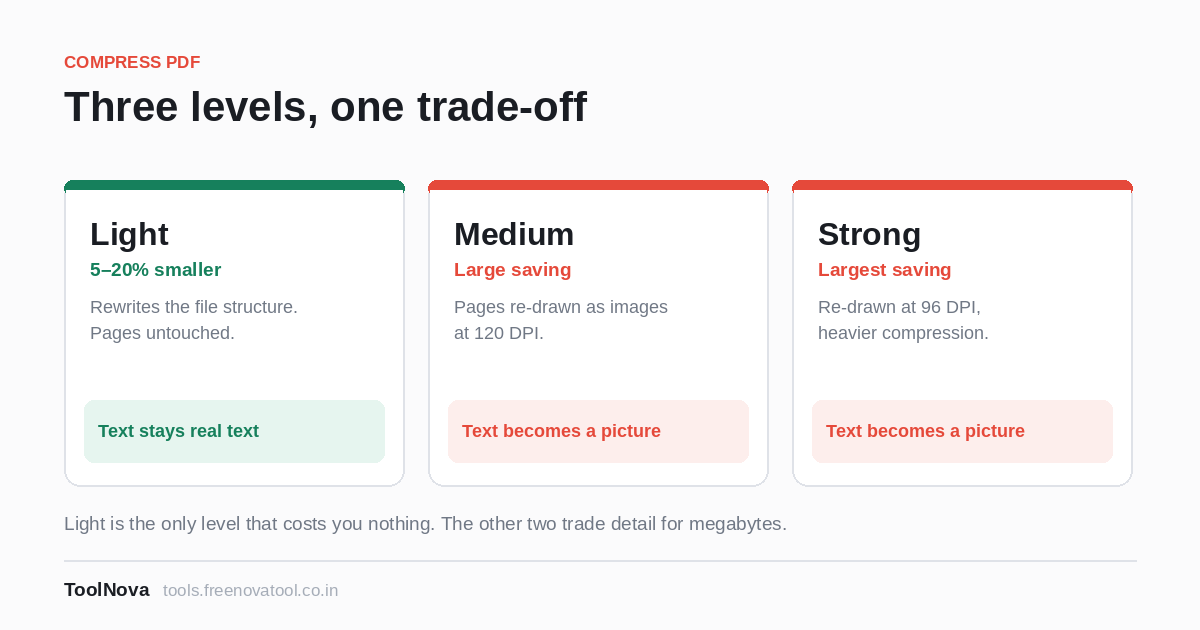
| Light | Rewrites the file's internal structure. Does not touch how any page is drawn. | Stays real text — selectable, searchable, copyable | 5–20% |
| Medium | Re-draws every page as an image at 120 DPI. | Becomes part of a picture | Large |
| Strong | The same, at 96 DPI with heavier image compression. | Becomes part of a picture | Largest |
Light is the only one of the three that is free in the sense that matters. It takes away waste and leaves detail alone. If 5–20% is enough to get you under the limit, stop there and do not read any further.
What "becomes part of a picture" actually costs you
This phrase sounds abstract until the consequences arrive. When a page is re-drawn as an image, the letters are still visible — they look like letters, they are perfectly readable — but the document no longer contains the information that they are letters. Concretely, after Medium or Strong:
- Ctrl+F finds nothing. Not in a PDF reader, and not in the search index of whatever system you upload it to.
- You cannot select or copy a sentence out of it.
- A screen reader cannot read it, which in some organisations is enough on its own to make the file unacceptable.
- Converting it to Word later produces nothing useful. PDF to Word works from the text a PDF contains; there is no longer any.
None of that is a defect in the compression. It is what you traded the megabytes for.
Choosing, in four cases
Work backwards from what happens to the file after you send it.
- Someone will read, search, quote or copy from it — a report, a contract, a thesis, a manual: Light. If Light is not enough, the honest answer is usually to split the document rather than flatten it. Split PDF will do that.
- It is already a scan — a signed form, a receipt, a photographed page: Medium. The text was never real text to begin with, so you are losing nothing you had. This is the case where compression is almost pure win.
- A hard limit and no negotiation — a government portal that refuses 2 MB and one: Strong, then open the result and read it before you send it.
- It will be OCR'd, printed properly, or kept as a record — Light, or do not compress at all. Medium and Strong throw away exactly the detail that text recognition needs.
Why some files barely shrink, and why that is fine
A 40-page text report with two embedded fonts is already small and already efficient. Light may change it by a couple of per cent, and people read that as the tool failing. It is not. There was nothing to remove. The file was fine.
The same is true of a PDF that has been compressed once already: a second pass gives you very little and costs you quality. If you find yourself running compression twice on the same document, the thing to change is further back — what the file is made of. We wrote about that separately in what actually makes a PDF file big.
Two habits worth keeping
Keep the original. Medium and Strong are one-way. Once a page has been re-drawn at 96 DPI, nothing recovers the detail — running Light over the result will not bring the text back. The tool writes a new file and leaves yours alone, which is the right behaviour, but it is on you not to delete the good copy.
Test one page before printing a hundred. Screens are forgiving and paper is not: a monitor shows a fraction of the detail a printer puts down, so a file that looks acceptable on screen at Strong can come out of a printer visibly soft. If it is going on paper, use Light, or Medium at most.
One thing worth knowing about where this runs
Compression happens in your browser, on your own machine — the file is not uploaded anywhere. That matters more for this tool than for most, because the documents people need to shrink tend to be the ones they would least like to hand to a stranger's server: bank statements, medical scans, signed contracts, photographs of an ID. If you want to know how to check a claim like that for yourself rather than take our word for it, we explained how in are online PDF tools safe.