

Compression is treatment. This is diagnosis, and doing it first will often save you from needing the treatment at all — because several of the usual causes of a huge PDF are things you can simply stop doing.
The ten-second measurement
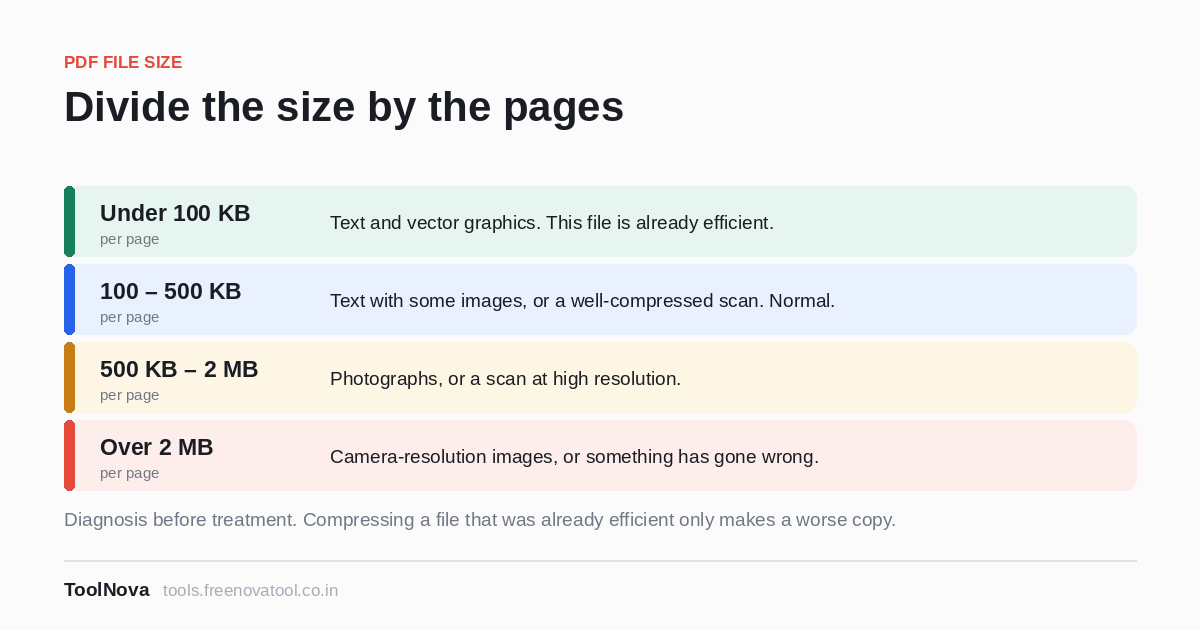
Divide the file size by the number of pages. That number tells you more than anything else you can do in the time.
| Per page | What it almost certainly is |
|---|---|
| Under 100 KB | Text and vector graphics. This file is already efficient. |
| 100–500 KB | Text with some images, or a well-compressed scan. Normal. |
| 500 KB – 2 MB | Photographs, or a scan at high resolution. |
| Over 2 MB | Camera-resolution images, or something has gone wrong. |
A 40-page document at 400 KB a page is a scan and it is fine. A 4-page document at 15 MB a page is not a mystery to be solved with compression; it is four camera photographs, and the fix is upstream.
The five usual causes
1. Raster where vector would do
PDFs can describe a picture two ways. A vector is instructions — a line from here to there, a circle of this radius, this shape filled with that colour — and it costs a few kilobytes no matter how large you print it. A raster is a grid of pixels, and it costs in proportion to how many pixels there are.
Charts, logos, diagrams, maps and signatures are naturally vector. They become raster when someone screenshots them, or pastes them as a picture, or exports through a program that flattens everything. A chart that would have been 8 KB as vector arrives as a 2 MB screenshot, and it looks worse when printed.
If your document has a logo on all 60 pages and that logo is a pasted screenshot, you are carrying it 60 times.
2. Resolution far beyond the page
This is the single commonest cause, and the arithmetic is worth seeing. An image printed 4 inches wide needs about 1,200 pixels across for excellent print quality (300 per inch) and about 600 for a screen. A modern phone photograph is 4,000 pixels across.
So a holiday-snap-sized photo dropped into a report at 4 inches wide carries roughly ten times the pixels it can possibly use. They are not visible anywhere, at any zoom level you will actually use, on screen or on paper. They are pure weight, and they are the bulk of most oversized PDFs.
3. Embedded fonts, mostly innocent
A PDF usually carries its fonts inside it, which is why it looks the same everywhere. Properly done, only the characters used are embedded — a subset — and that costs tens of kilobytes.
Full embedding of a large family, or a CJK font with tens of thousands of glyphs, costs several megabytes. If a short document is unexpectedly large and contains no images at all, this is usually it. There is not much to do about it after the fact, but it is worth knowing that it is the fonts and not something you can compress away.
4. The layers of previous saves
PDF was designed so that a change could be appended rather than rewritten. Edit, save, edit, save, and the file can accumulate several versions of itself, with only the newest in use. Fill in a form repeatedly, or pass a document through a few rounds of annotation, and a surprising amount of the file is history.
This is the waste that a structural cleanup removes, and it is why the Light level on Compress PDF sometimes takes 30% off a file while touching nothing you can see.
5. Things attached that are not pages
A PDF can carry embedded files, full-page thumbnails, JavaScript, form definitions, colour profiles, and metadata. Individually small, occasionally not: embedded attachments in particular can be larger than the document they are attached to, and nothing in the reader makes that obvious.
Finding out which one it is
Without specialist software, two quick tests narrow it down a long way.
Try to select text. If you can highlight a sentence, the pages are real text and the weight is in images, fonts or waste. If you cannot, every page is a picture and the weight is the pages themselves.
Run Light compression and look at the result. Light only removes waste. If the file drops substantially, your problem was cause 4 and you are done — at no cost to quality. If it barely moves, the weight is real content and you are choosing between resolution and megabytes.
Fixing it upstream, which is better
Most of this is created at export time, by whichever program made the PDF.
- Word, Pages, LibreOffice: resize images to the size they appear at before inserting them, not after. Scaling a picture down in the document changes how it is drawn, not what is stored.
- PowerPoint and Keynote: decks are image-heavy by nature and exports are rarely optimised. Both have a reduce-file-size option that is worth finding.
- Scanners: 600 DPI is for archival reproduction of photographs. 300 DPI is right for documents, 200 is fine for text you only need to read. Colour mode on a black-and-white page can triple the size for nothing.
- Design tools: look for a "web" or "smallest size" PDF export. Print export embeds everything at full resolution by design.
When the file is big and that is correct
Some documents are legitimately large. A 300-page scanned archive, a set of architectural drawings, a photo book — these are big because they contain a lot, and the right response is not to crush them but to question the delivery. Splitting the document, or sending the three pages someone actually asked for, solves the real problem — which was usually an email limit, not the file.
Compression is for when the file contains more than it needs. When it does not, compression just makes a worse copy of something that was fine.